LoadingThe content.POS module is designed for fast and efficient sales transactions. This guide covers the process of making a sale.
Step-by-step Instructions:
From the main sidebar navigation, click on Point of Sale.
Select Process Sales from the sub-menu.
To find a product, use the Search product by name, barcode field or browse product categories.
Click on a product to add it to the current sale. The Payment Summary on the right will update automatically.
To add a customer to the transaction, click Add Customer and select or create a customer profile.
(Optional) Add any relevant notes for the sale in the Notes field.
Review the Payment Summary for Subtotal, Discount, Tax, and Grand Total.
Proceed to process the payment.
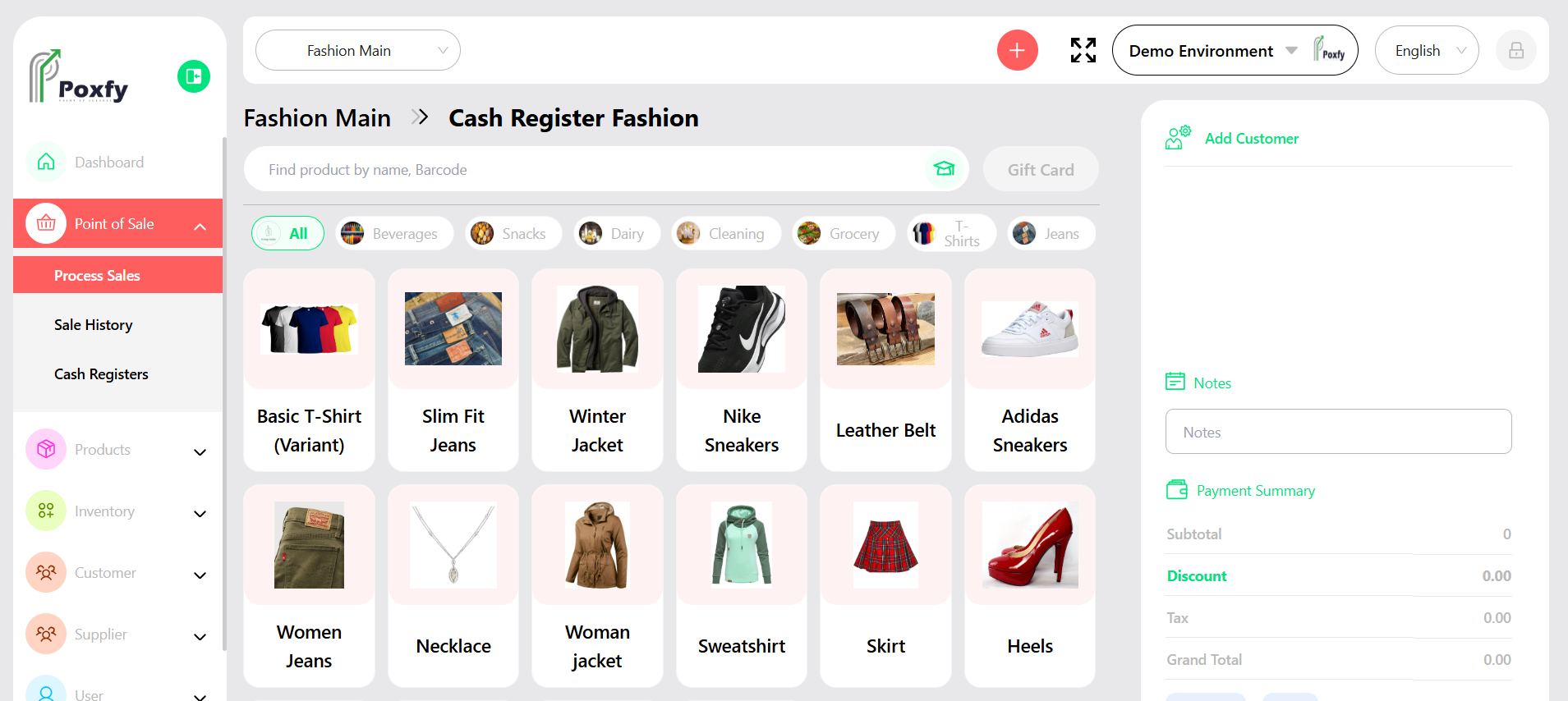
Figure 4: Point of Sale - Process Sales Screen
Tip: Use category filters to quickly find products, especially in stores with large inventories. The search function supports product names and barcodes for faster checkout.
