
Processing a Sale
The POS module is designed for fast and efficient sales transactions. This guide covers the process of making a sale.
Step-by-step Instructions:
- From the main sidebar navigation, click on Point of Sale.
- Select Process Sales from the sub-menu.
- To find a product, use the Search product by name, barcode field or browse product categories.
- Click on a product to add it to the current sale. The Payment Summary on the right will update automatically.
- To add a customer to the transaction, click Add Customer and select or create a customer profile.
- (Optional) Add any relevant notes for the sale in the Notes field.
- Review the Payment Summary for Subtotal, Discount, Tax, and Grand Total.
- Proceed to process the payment.
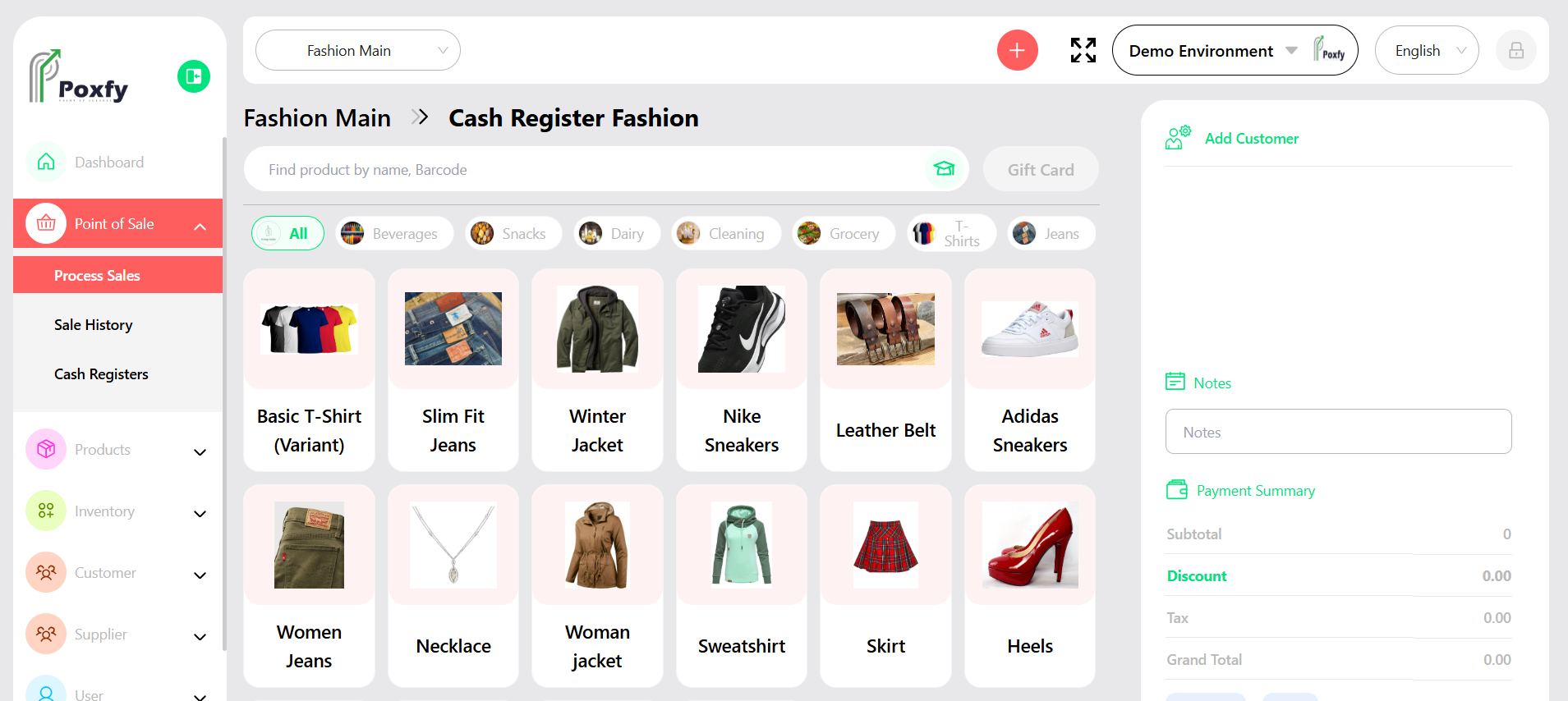
Figure 4: Point of Sale - Process Sales Screen
Tip: Use category filters to quickly find products, especially in stores with large inventories. The search function supports product names and barcodes for faster checkout.