
Checking My Inventory
This guide shows how to view and adjust your current stock levels.
Step-by-step Instructions:
- From the main sidebar navigation, click on Inventory.
- Select My Inventory from the sub-menu.
- Review the Currently Available, Allocated, and Available quantities for each item.
- To adjust stock, enter the desired amount in the Add Quantity field or use Set Quantity.
- Use the search bar and filters to narrow down your view.
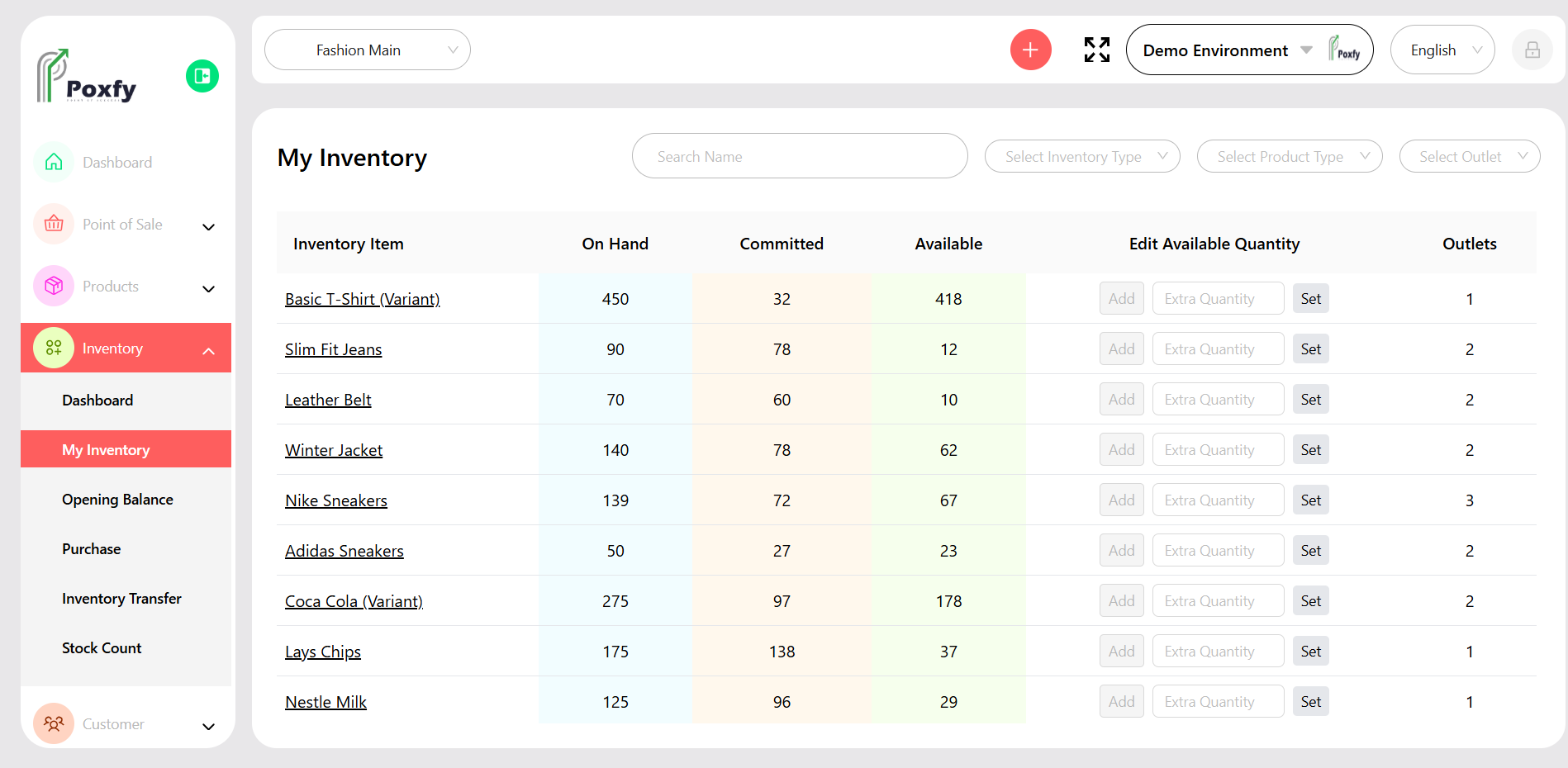
Figure 13: My Inventory Screen
Tip: Regularly check your inventory to prevent stockouts and optimize stock levels. The 'Allocated' quantity indicates items reserved for open orders, so plan your purchases accordingly.